How to Fix Page Misalignment When Uploading PDFs to KDP
Your pages look perfect in Canva or InDesign but shift, drift, or crop once they hit Kindle. Here’s why KDP page misalignment happens and how to fix layout drift before you upload.
By Magnus | Published 2026-04-16 | Category: Troubleshooting
KDP page misalignment almost always happens because the platform
converts your PDF to a reflowable format, stripping out the absolute
positioning your design relies on. The fix is to convert your PDF to a
fixed-layout EPUB before uploading — which locks every element exactly
where you placed it.
What Page Misalignment Looks Like on Kindle
You've spent hours on your layout. The preview in your design tool
looks exactly right. Then you upload to KDP and open the Kindle
preview — and something has gone badly wrong.
KDP page misalignment shows up in several ways, and it's worth
knowing what you're looking at before diagnosing the cause.

Text shifts out of its column
Body text that should sit within a defined text box drifts left or
right, sometimes spilling beyond margins or overlapping a neighbouring
column. This is particularly noticeable in two-column layouts like
recipe pages or workbook spreads.
Images float to unexpected positions
An image that was anchored to the bottom-right of a page appears at
the top, or is displaced to a completely different page. In children's
books, this is devastating — the illustration no longer relates to
the text beside it.
Margins become uneven
A consistent 15 mm inner margin becomes 3 mm on some pages and 30 mm
on others. Kindle devices have different screen sizes, and without
fixed-layout constraints, the renderer redistributes your content to
fill the available space.
Elements overlap
Decorative elements — borders, background shapes, pull quotes — stack
on top of body text, making pages unreadable. This happens when the
renderer reflows text into a different amount of space than the
original design assumed.
Scale changes unexpectedly
Page content that was sized for a specific trim appears zoomed in or
out, breaking the visual rhythm of spreads designed to be viewed at a
consistent scale. This is common when page dimensions don't match
Kindle's expected EPUB viewport.
Why Your Pages Break — The 4 Main Causes
Understanding the root cause saves time. Rather than tweaking your
design endlessly, you can fix the actual problem at the format level.
1. Reflowable conversion
This is the primary cause. When you upload a PDF to KDP, the platform
runs it through a conversion pipeline that strips absolute positioning
and turns it into a reflowable EPUB. In a reflowable EPUB, the
reading device — not the designer — decides where each element sits on
the screen.
For a novel, this is a feature. For a cookbook with a two-column
layout and embedded photography, it's a disaster. The conversion has
no way to know that your image needs to stay next to that specific
paragraph, so it doesn't.
2. Dimension mismatch
Kindle eBooks are rendered at specific viewport dimensions that don't
necessarily match common print trim sizes. If your Canva design is set
to A5 (148 × 210 mm) but the Kindle viewport expects a 1072 × 1448 px
canvas, every page gets scaled — and the scaling is rarely uniform
across elements.
This is why you should design for Kindle-specific dimensions from the
start, or ensure your PDF is converted by a tool that handles
viewport remapping intelligently. See our guide to
fixed-layout vs reflowable EPUB
for the exact dimensions to use.
3. Font rendering differences
If your PDF doesn't embed its fonts — or embeds them in a format the
Kindle renderer doesn't fully support — the device substitutes a
system font. System fonts have different character widths, line
heights, and kerning. A paragraph that fits neatly in 12 lines
suddenly needs 14, pushing everything below it down by two lines.
Multiply that across 200 pages and you have severe cumulative drift,
where the latter half of your book bears no resemblance to the
original design.
4. Lost image anchoring
In a designed PDF, images are positioned absolutely on the page
canvas. In a reflowable EPUB, images become inline elements within
the text flow. When KDP converts your PDF, inline images float to
wherever the text flow places them — which is usually not where you
put them.
The Quick Diagnostic
Before spending time fixing anything, you need to know whether the
problem is in your source file or in the conversion process.
Step 1: Check the PDF itself
Open your exported PDF in Adobe Acrobat Reader or a browser PDF
viewer. Does it look exactly as designed? If yes, the source file is
correct — the problem is in the conversion pipeline.
Step 2: Check for embedded fonts
In Acrobat, go to File → Properties → Fonts. Every font used in your
document should appear as "Embedded" or "Embedded Subset". If any
font shows as "Not Embedded", that's a direct cause of text drift.
Step 3: Check your page dimensions
In your design tool, confirm your canvas size. For Kindle eBooks: use
1072 × 1448 px portrait or 1448 × 1072 px landscape. Physical
dimensions (A4, A5, US Letter) are for print — not for eBook
production.
Step 4: Run an automated audit
Rather than checking these manually across every page,
MJ Convert Systems runs an automated pre-flight
audit on your PDF before conversion. It checks font embedding, page
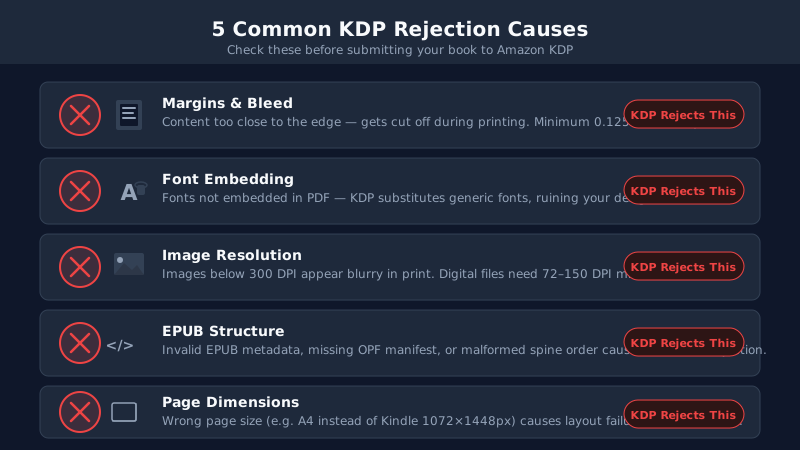
dimensions, image resolution, and element anchoring — flagging any
issue that could cause misalignment.
How to Fix Page Misalignment Step by Step
Once you've confirmed the PDF source file is correct, the fix is
converting it to a fixed-layout EPUB rather than letting KDP convert
it on your behalf.
Step 1: Upload your PDF
Upload your PDF to
MJ Convert Systems. The platform accepts PDFs
exported from Canva, InDesign, Affinity Publisher, QuarkXPress, and
any other tool that produces a standard PDF/X file.
If you're exporting from Canva, use the "PDF Print" option rather
than "PDF Standard". If you're exporting from InDesign, use PDF/X-4
with fonts embedded and bleed set to 0. See our
complete Canva to Kindle guide
for export settings.
Step 2: Review the automated audit
Before conversion begins, MJ Convert Systems audits your file and
flags any issues that could cause misalignment. Common flags include:
- Fonts not embedded (listed by font name and affected pages)
- Page dimensions outside Kindle viewport range (with recommended
target dimensions)
- Images below 150 DPI (which cause pixellation in conversion)
- Transparency effects that may not survive format conversion
Address any critical flags in your source design, re-export, and
re-upload before proceeding.
Step 3: Convert to fixed-layout EPUB
MJ Convert Systems converts your PDF to fixed-layout EPUB — not
reflowable. Every element is positioned absolutely on a defined
viewport canvas. Text doesn't reflow. Images don't drift. Margins
don't change.
This is exactly what KDP needs for designed books. KDP accepts
fixed-layout EPUB natively, and the platform renders it on every
Kindle device and the Kindle app without modification.
Step 4: Visual validation
After conversion, the platform renders every page and compares it
pixel-by-pixel against the original PDF. Any page where drift exceeds
the threshold is flagged for review before you download the file.
Step 5: Export and upload to KDP
Once validation passes, download your fixed-layout EPUB and upload it
directly to KDP. In the KDP upload interface, select "Upload your
manuscript" and choose EPUB — not PDF. KDP will render the fixed
layout exactly as designed.
What Is a Drift Score?
When MJ Convert Systems converts your PDF to fixed-layout EPUB, it
measures drift on every page. Drift is the distance any element has
moved from its position in the original PDF, expressed as a percentage
of the page dimensions.
A drift score of 0% means every element is pixel-perfect. A drift
score of 1% means something has moved — perhaps an image that was
anchored at x=100px is now at x=101px on a 1000px-wide page.

MJ Convert Systems validates every page against a 2% maximum
drift threshold, and blocks export for any page that exceeds it.
Elements stay where you placed them, or the page is flagged for review.
The drift score is reported per page in the validation report, so you
can see exactly which pages — if any — have element movement above
threshold. Pages that pass are locked. Pages that flag are held for
your review before export.
Before-You-Upload Checklist
Run through this list before every KDP upload to avoid misalignment
issues. These checks take less than five minutes and catch the vast
majority of problems before they reach the platform.
If you're still unsure whether your file will pass, the automated
audit in MJ Convert Systems runs all of these
checks and more before conversion begins. See our guide on
why KDP rejects your eBook
for the full list of rejection reasons.
- Why KDP keeps rejecting your eBook
- Fixed layout vs reflowable EPUB
- Canva eBook design tips for KDP
- MJ Convert Systems PDF to EPUB converter
- See pricing and plans starting from $9.99
- See more guides on converting PDFs to Kindle
Frequently Asked Questions
- Why does my PDF look fine in preview but misaligned on Kindle?
- KDP converts your PDF to a reflowable format by default, which strips out absolute positioning. Elements that look correct in the PDF are repositioned by the Kindle rendering engine.
- What is the correct page size for KDP eBooks?
- For Kindle eBooks, design at 1448 × 1072 pixels (landscape) or 1072 × 1448 pixels (portrait) at 72 dpi.
- Can I fix misalignment without redesigning my book?
- Yes. If the original PDF is well-formed, you can convert it to fixed-layout EPUB using MJ Convert Systems without touching your source design files.
- What is a drift score?
- A drift score measures how far any element on the converted page has shifted from its position in the original PDF. MJ Convert Systems validates every page against a 2% maximum drift threshold and blocks export if it's exceeded.
- Do embedded fonts affect page alignment?
- Yes. If fonts are not embedded in the PDF, the Kindle renderer substitutes a system font with different metrics, changing line lengths and element positions.
- What file format should I upload to KDP for a designed book?
- For designed books — cookbooks, children’s books, workbooks, illustrated guides — you should upload a fixed-layout EPUB rather than a raw PDF.
See more guides on converting PDFs to Kindle
MJ Convert Systems PDF to EPUB converter
See pricing and plans — credits from $9.99, or Pro from $47.97/month
Start with a free PDF check — no subscription required