Why KDP Keeps Rejecting Your eBook (and How to Fix It)
Amazon KDP rejected your eBook again? Discover the 5 most common formatting errors that trigger KDP rejections and how to catch and fix them before you upload your file.
By Magnus | Published 2026-04-16 | Category: KDP
Most KDP rejections are caused by five fixable issues: mismatched margins, corrupted or
missing fonts, low-resolution images, EPUB structure errors, and page dimension mismatches.
Designed books — particularly those converted from Canva or other layout tools — get
rejected more often because standard converters produce structurally invalid EPUBs.
Running an automated pre-upload audit catches these issues before KDP does.
The 5 Most Common Reasons KDP Rejects Your eBook
KDP's quality filters are automated and unforgiving. Understanding what they look for is
the first step to getting through them without a rejection.
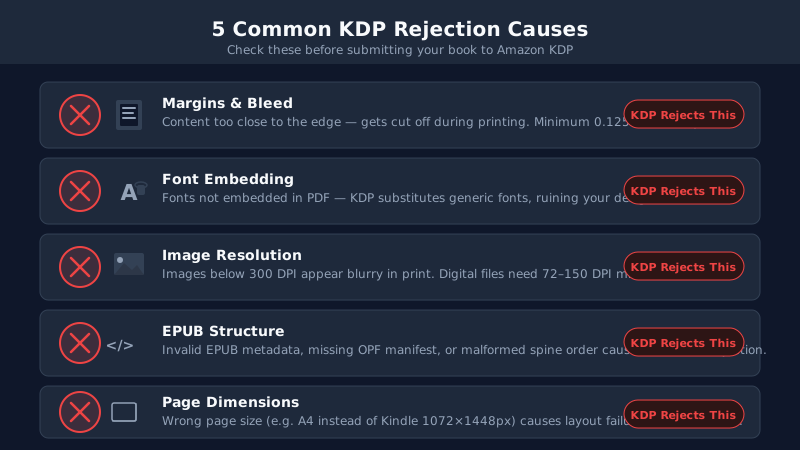
1. Mismatched Margins
Kindle eBooks have specific margin requirements that differ from print books. If your
source PDF was designed for print with large outer margins and gutter allowances, these do
not translate correctly when the file is processed for Kindle. KDP's system may interpret
excessive margins as formatting errors, or it may crop content in ways that make pages look
off-centre or cut off.
For fixed-layout eBooks, the page dimensions you set in your design tool must match the
dimensions your EPUB declares. A mismatch of even a few points can trigger a rejection. If
you converted from Canva using a tool that does not correctly map page sizes, this is a
common failure point.
2. Corrupted or Missing Fonts
KDP requires that all fonts used in an EPUB are either embedded in the file or are
standard system fonts that Kindle devices support. If your converter did not embed fonts
from your source PDF, KDP may reject the file outright, or Kindle devices will substitute
a default font — breaking your typography entirely.
Some fonts have licensing restrictions that prohibit embedding. If you used a licensed
font in Canva that cannot be legally embedded, the PDF-to-EPUB conversion may produce a
file with missing font data. This is less common with mainstream design tools, but it
occurs. Always verify that fonts are embedded before submission.
3. Image Resolution Issues
KDP has minimum image resolution requirements, and its automated system flags images that
fall below acceptable thresholds. This most often occurs when a converter compresses images
during the PDF-to-EPUB process, or when the source PDF was exported at standard rather than
print quality.
For visual books — cookbooks, children's books, art books — image quality is fundamental to
the reading experience. A rejection for low-resolution images is frustrating because it is
entirely avoidable with the right export settings and conversion process.
4. EPUB Structure Errors
EPUB is a technical format with a defined specification. An EPUB file must contain specific
required files (the OPF package document, content documents, a navigation file) in the
correct structure. If any of these are missing, malformed, or contain invalid XML, KDP
will reject the file.
This is the category where most free and general-purpose converters fail for designed
books. Converting a complex PDF to a structurally valid EPUB requires understanding the
EPUB specification — not just renaming files or repackaging content. EPUB validation errors
are the hardest rejection category to diagnose from KDP's error messages alone.
5. Page Dimension Mismatches
For fixed-layout EPUBs, every page must declare its width and height, and these must be
consistent across the book (or explicitly varied where intentional). If your PDF had
inconsistent page sizes — perhaps because some pages were designed at slightly different
dimensions — the EPUB output will contain dimension mismatches that trigger a rejection.
KDP also has maximum page dimension limits. Oversized page declarations (common when a
print PDF with bleed is converted without adjustment) will fail validation.
Why Visual/Designed Books Get Rejected More Often
If you are publishing a plain text novel, KDP rejections are relatively rare. The standard
Word-to-EPUB or DOCX-to-KDP pipeline is well-tested, and the simple structure of a
text-only book is easy for conversion tools to handle correctly.
Designed books are a fundamentally different problem. A Canva-designed cookbook, a
children's picture book, or a visual workbook has:
- Complex multi-element page layouts with precise positioning
- Custom embedded fonts, sometimes dozens per book
- High-resolution images interwoven with text content
- Transparency effects, gradients, and layered design elements
- Non-standard page dimensions chosen for the design, not for Kindle defaults
Every one of these elements is a potential failure point when you run the file through a
converter that was not designed for visual books. The tools built for text-only conversion
— Calibre, basic online converters, even Kindle Create in some cases — do not have the
internal logic to handle these elements correctly for fixed-layout output.
The result is EPUB files with structural errors, missing fonts, incorrect page declarations,
or improperly embedded images — all of which trigger KDP's rejection filters. This is not
a problem with your design. It is a problem with the conversion tool.
How to Catch These Errors Before Uploading to KDP
The most efficient way to avoid KDP rejections is to replicate KDP's quality checks before
you ever hit the upload button. There are two approaches: manual checking and automated
audit.
Manual Checking
You can run EPUBCheck yourself — it is a free open-source tool available from the W3C.
Running your EPUB through EPUBCheck will catch structural and syntax errors before
submission. Similarly, Kindle Previewer (Amazon's free tool) will flag some rendering
issues and give you a visual preview of how the book appears on different devices.
The limitation of manual checking is coverage. EPUBCheck validates structure but does not
check font embedding completeness, image resolution against KDP's minimums, or page
dimension consistency. You need several tools working together, and knowing how to
interpret the error output requires technical knowledge of the EPUB specification.
Automated Audit
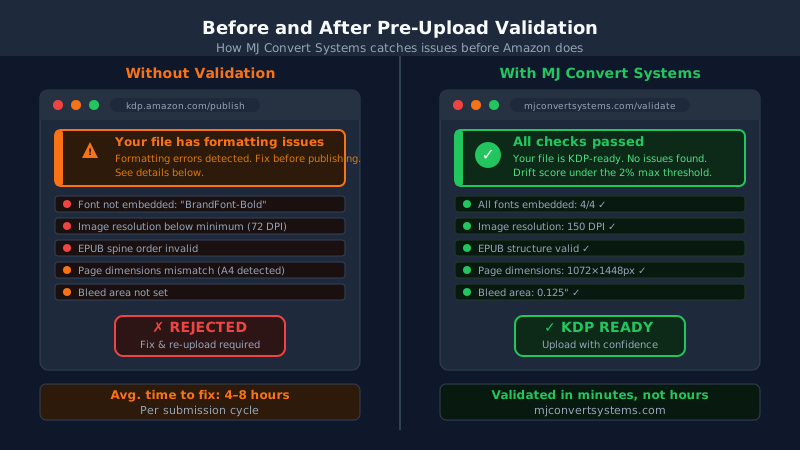
MJ Convert Systems runs an automated pre-conversion audit as the
first step of every conversion. Before the EPUB is generated, the system checks your source
PDF against all five of the failure categories above — margins, fonts, images, structure
indicators, and page dimensions. If anything is flagged, you see a clear explanation of
the issue and what to fix before proceeding.
After conversion, a visual validation pass compares the EPUB output to the source PDF
page by page. The export is only enabled when the validation passes. This is the equivalent
of having a quality check built into the conversion process itself.
The Pre-Upload Checklist
Use this checklist before submitting any eBook to KDP, particularly if it was designed in
Canva, InDesign, Affinity Publisher, or any other layout tool.
Source File Checks
- Exported from your design tool at the highest quality setting (PDF Print, not PDF
Standard)
- All fonts are embedded in the source PDF — verify by opening in a PDF viewer and
checking document properties
- Images are at or above 300 DPI — check your design tool's export resolution
settings
- Transparency effects are flattened if your design tool supports this option
- Page dimensions are consistent throughout the document (or intentionally varied
for specific pages)
EPUB Conversion Checks
- Run the EPUB through EPUBCheck — zero errors, warnings acceptable for non-critical
items
- Open in Kindle Previewer and check at least the first 10 pages visually
- Verify fonts are embedded in the EPUB (open the EPUB as a ZIP and check the
Fonts folder)
- Confirm the EPUB type declaration is set to fixed-layout if your book
is a designed visual book
- Page dimensions declared in the EPUB match the content page dimensions
KDP Upload Checks
- Use KDP's own previewer after upload and before publishing — review every page
- Check the book's metadata: title, author, ASIN if updating an existing listing
- Verify the cover image meets KDP's requirements (minimum 1,000 px on the shortest
side, 2,560 × 1,600 recommended)
What to Do If KDP Already Rejected Your File
A rejection is not the end of the road. Here is a methodical approach to diagnosing and
fixing the issue.
Read the Rejection Email Carefully
KDP sends an email when it rejects a submission. The message is often vague, but it
usually identifies a category of issue — formatting, images, structure. Use this as your
starting point. If the message mentions "image quality," begin with your export settings.
If it mentions "formatting issues," your EPUB structure is the likely culprit.
Run EPUBCheck on Your Current File
Download the rejected file and run it through EPUBCheck. This will identify any structural
EPUB errors that KDP's system caught. Make a list of every error and warning — do not
dismiss warnings, as KDP may be stricter about some of them than EPUBCheck's severity
ratings suggest.
Re-Convert with the Right Tool
If EPUBCheck reveals structural errors, the root cause is almost always the converter used
to produce the EPUB. Rather than trying to fix the EPUB file manually (which requires
direct XML editing), re-convert from your original source PDF using a converter designed
for fixed-layout output. The same PDF that produced a broken EPUB in a general-purpose
converter will typically produce a clean EPUB in a tool built for designed books.
This is the scenario MJ Convert Systems handles well — if you have
already received a KDP rejection, upload your original source PDF, let the audit run, and
convert to a validated EPUB. The audit step will identify what went wrong with the previous
conversion. For more context on KDP page issues, see our guide on
fixing page misalignment on KDP.
Resubmit With Confidence
Once you have a clean EPUB that passes EPUBCheck with zero errors and looks correct in
Kindle Previewer, resubmit to KDP. Keep the rejection email for reference — if you receive
a second rejection on the same file, compare the error messages to identify whether you
fixed the original issue or introduced a new one.
- How to convert your Canva PDF to Kindle
- How to fix page misalignment on KDP
- Calibre vs MJ Convert Systems comparison
- See pricing and plans starting from $17.97/month
- See more guides on converting PDFs to Kindle
Frequently Asked Questions
- How long does it take KDP to review a rejected eBook?
- After you resubmit, KDP’s review typically takes 24–72 hours. During peak periods, it can take longer. Each rejection and resubmission adds to your timeline, which is why catching errors before the first upload matters.
- Can KDP reject an eBook after it has already been published?
- Yes. KDP can flag and unpublish books that fail quality checks even after they go live, particularly if readers report formatting issues.
- What image resolution does KDP require for Kindle eBooks?
- KDP recommends a minimum of 300 DPI for images in Kindle eBooks. For fixed-layout books where images are a core design element, 300 DPI or higher is essential.
- Does KDP give specific error messages when it rejects an eBook?
- KDP’s error messages can be vague. Common messages include references to formatting issues, image quality problems, or structural EPUB errors without pinpointing the exact page or element.
- What EPUB version does KDP accept?
- KDP accepts both EPUB 2 and EPUB 3. For fixed-layout books, EPUB 3 is required. MJ Convert Systems outputs EPUB 3 fixed-layout files that meet KDP’s structural requirements.
- Can I fix a KDP rejection without re-doing the entire design?
- In most cases, yes. The most common fixes are adjusting export settings (font embedding, image resolution, flatten transparency), fixing EPUB structure errors via a proper converter, or resolving page dimension mismatches.
See more guides on converting PDFs to Kindle
MJ Convert Systems PDF to EPUB converter
See pricing and plans starting from $17.97/month
Start your free 7-day trial at MJ Convert Systems