KDP Cover Size in Canva (2026): Dimensions + Spine Template
The exact ebook and print-wrap cover dimensions KDP requires, the spine-width formula worked through a real example, and a step-by-step Canva setup — so your cover isn't rejected at upload.
By Magnus | Published 2026-08-26 | Category: Canva
Your ebook cover and your print cover are two different files with two different sizes — the ebook cover is a single flat image (2560 × 1600px recommended), while the print cover is one full-wrap file that includes the back cover, a calculated spine width, and the front cover, plus 0.125in bleed on every side. Canva doesn't have a built-in “KDP full-wrap” template size, so you set up a custom canvas at your own calculated dimensions — using a marketplace template only for layout inspiration, not its default size.
Two Different Files: Ebook Cover vs. Print Cover
The most common cover mistake first-time authors make in Canva isn't a design choice — it's treating the ebook cover and the print cover as the same file. They aren't, and KDP asks for them separately.
- What it contains: Ebook cover — front cover only. Print cover — back cover + spine + front cover, as one wrap.
- Size basis: Ebook cover uses a fixed recommended pixel size. Print cover is calculated from your trim size and page count.
- Bleed: Ebook cover needs none. Print cover needs 0.125in (3.2mm) on all sides.
- File format: Ebook cover exports as JPEG, sRGB. Print cover exports as PDF (print-ready).
Where the cover fits into your KDP upload: On KDP, the cover image and the manuscript (interior pages) are uploaded as separate files — even for a fixed-layout EPUB whose interior already includes a cover page. Design and export them as two Canva projects — see our PDF preparation guide for getting your interior pages ready to convert.
Setting Up Your Ebook Cover in Canva
Create a custom canvas in Canva at 1600 × 2560 px — Amazon's recommended size, at a 1.6:1 ratio. This is the size that stays sharp both as a full-screen Kindle cover and as a small thumbnail in search results and recommendations.
- Minimum accepted: 1000 × 625 px. Anything smaller is rejected outright at upload.
- Quality threshold: covers under roughly 2500px on the long side commonly trigger an Amazon quality warning for looking blurry on high-resolution tablets and in store listings — stay at or above the recommended size rather than the bare minimum.
- Format: export as JPEG in sRGB color, not CMYK — screens render sRGB; CMYK files can shift color noticeably when KDP converts them.
Setting Up Your Print Wrap Cover in Canva
The print cover is one continuous file: back cover, spine, front cover, side by side, plus bleed. Canva has no built-in “KDP full-wrap” preset, so you calculate your own canvas dimensions before you start designing.
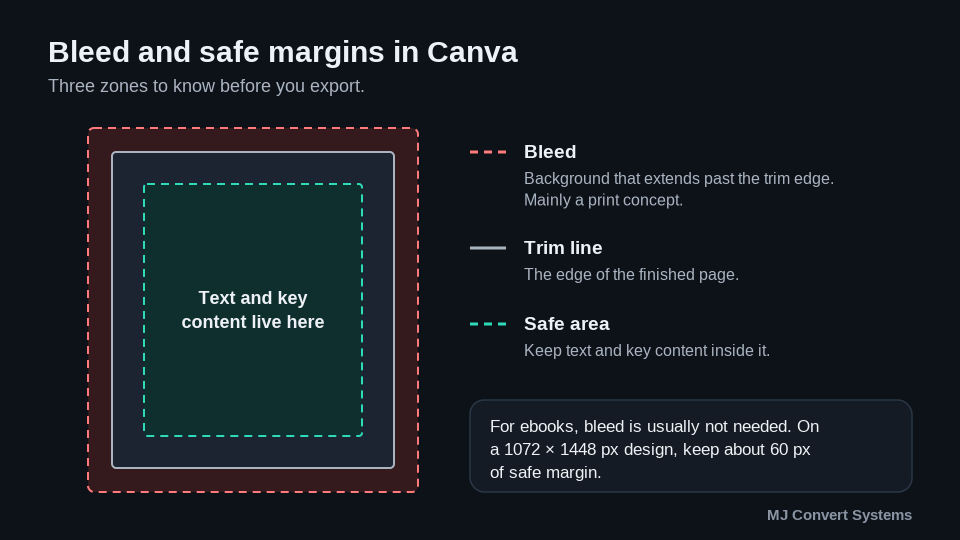
- Bleed: 0.125in (3.2mm) on all four sides — always required.
- Spine width: (page count × paper thickness per page) + 0.06in.
- Total canvas width: (trim width × 2) + spine width + 0.25in bleed.
- Total canvas height: trim height + 0.25in bleed.
“Trim width/height” is your chosen paperback size — common KDP trim sizes include 5 × 8in, 5.25 × 8in, 5.5 × 8.5in, and 6 × 9in. Pick this first; every other measurement in the formula depends on it.
Worked Example: Calculating Your Spine Width
Say you're designing a 200-page paperback at 6 × 9in trim, printed on white paper.
- Spine width: (200 pages × 0.002252in) + 0.06in = 0.5104in
- Total canvas width: (6in × 2) + 0.5104in + 0.25in = 12.7604in
- Total canvas height: 9in + 0.25in = 9.25in
Set your Canva canvas to those exact dimensions in inches before you place anything. Paper thickness varies slightly by paper type — roughly 0.0025in/page for cream paper and 0.002347in/page for standard or premium color — so recalculate if you switch paper stock after your first draft.
Check your pixel resolution, not just your inches: Setting Canva's canvas to the right inches doesn't by itself guarantee the right print resolution behind it — Canva doesn't automatically scale your artwork up to meet KDP's resolution requirement just because you typed exact inches into the canvas size field. Before you export, multiply your canvas dimensions by 300 (KDP's required print DPI) to get the minimum pixel size your design needs — for the 12.7604 × 9.25in example above, that's roughly 3,828 × 2,775px. If the artwork you placed on the canvas is smaller than that — a template built at a lower resolution, or an image you dragged in and stretched to fit — your inches are correct but the file behind them isn't, and the cover can print visibly blurry even though every measurement in the formula above checks out.
Short books can't fit spine text: Below roughly 79 pages, your calculated spine width falls under KDP's minimum readable spine-text width (0.0625in). If your book is shorter than that, plan for a blank or solid-color spine rather than title text that won't be legible.
Using Canva Templates Without Breaking Your Dimensions
Canva's marketplace has plenty of book cover templates, but they fall into two categories that look similar and aren't: templates built as a single ebook-style cover, and templates built as a print wrap with a spine already blocked in. Neither is sized for your specific trim size and page count — that's mathematically impossible for a generic template to guess in advance.
Use a template for what it's actually good for — font pairing, color palette, layout balance — then resize the canvas to your calculated dimensions from the sections above and reposition the design elements to fit. Don't export at the template's default size and assume it will match your book.
Exporting Correctly
For the print wrap cover, export as PDF — use Canva's “Print” PDF option, not “Standard,” so bleed and color are handled the way KDP expects. For the ebook cover, export as JPEG at maximum quality. Before you upload either file, open the exported PDF and check its actual page size against the pixel-resolution math above — the export itself won't warn you if the inches are right but the resolution behind them isn't.
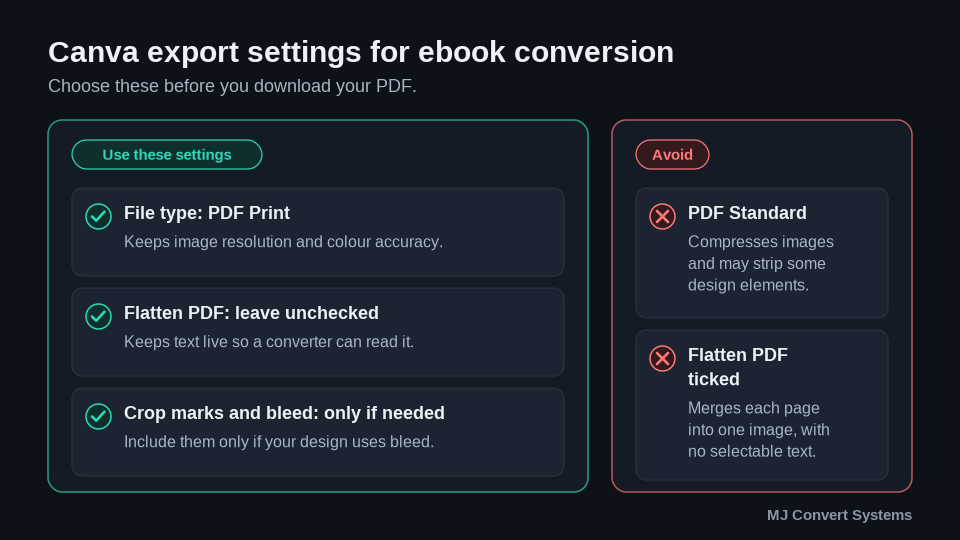
If you're also designing the book's interior pages in Canva — not just the cover — the same “PDF Print, not PDF Standard” rule applies there too, along with a handful of other export settings that commonly trip up first-time Canva-to-KDP uploads. We cover those separately in Canva eBook Design Tips: Avoiding the 5 Most Common KDP Errors.
Frequently Asked Questions
- What size should my Kindle ebook cover be in Canva?
- Amazon's recommended ebook cover size is 2560 x 1600 pixels (1.6:1 ratio), saved as JPEG in sRGB at 300 DPI. The hard minimum is 1000 x 625 pixels; below that, upload is rejected, and covers under roughly 2500px on the long side can trigger a quality warning.
- Do I need a different cover for the print paperback than the ebook?
- Yes. The ebook cover is a single flat front-cover image. The paperback cover is one full-wrap file with the back cover, spine, and front cover combined, sized from your trim size and page count. They're two different Canva documents.
- How do I calculate spine width for a KDP paperback in Canva?
- Spine width = (page count x paper thickness per page) + 0.06 inches. White paper is about 0.002252 in/page, cream about 0.0025 in/page, color about 0.002347 in/page. A 200-page white-paper book works out to (200 x 0.002252) + 0.06 = 0.5104 inches. Books under about 79 pages can't fit readable spine text.
- What bleed does a KDP cover need?
- 0.125 inches (3.2mm) of bleed on all four sides of the full-wrap print cover file.
- Can I use a Canva book cover template directly for KDP?
- Only as a starting point. Canva templates aren't sized for your specific trim size and page count — use one for layout and font inspiration, then rebuild the canvas at your own calculated dimensions rather than exporting at the template's default size.
- Why does my Canva cover look blurry when KDP prints it, even though I used the right inch dimensions?
- Because setting a canvas to the correct inches doesn't guarantee the correct pixel resolution behind it. KDP needs print files at 300 DPI, so multiply your calculated inches by 300 to get the minimum pixel size your design needs — for a 12.7604 x 9.25in wrap, that's roughly 3,828 x 2,775px. If your artwork or template was built at a lower resolution, the inches can be exactly right while the file is still too low-res to print sharp.
See more guides on converting PDFs to Kindle
MJ Convert Systems PDF to EPUB converter
See pricing and plans — credits from $9.99, or Pro from $47.97/month
Start with a free PDF check — no subscription required